How to Pull Oil Prices into n8n
Add a Schedule Trigger, then an HTTP Request node with these settings. Each run returns the latest Brent price and its source timestamp:
| Field | Value |
|---|---|
| Method | GET |
| URL | https://api.oilpriceapi.com/v1/prices/latest |
| Query | by_code = BRENT_CRUDE_USD |
| Authentication | Generic Credential Type → Header Auth |
| Credential | Name Authorization, Value Token YOUR_API_KEY |
The node output (trimmed; a real response from 2026-11-26):
{
  "status": "success",
  "data": {
    "price": 96.53,
    "currency": "USD",
    "code": "BRENT_CRUDE_USD",
    "unit": "barrel",
    "as_of": "2026-11-26T18:29:00.000Z",
    "source_date": "2026-11-26",
    "changes": { "24h": { "amount": 2.82, "percent": 3.01 } }
  }
}
Use {{ $json.data.price }} and {{ $json.data.as_of }} in the next node. as_of is when the source observed the price; store it with every value. Always send an explicit by_code: a bare GET /v1/prices/latest returns BRENT_CRUDE_USD by default.
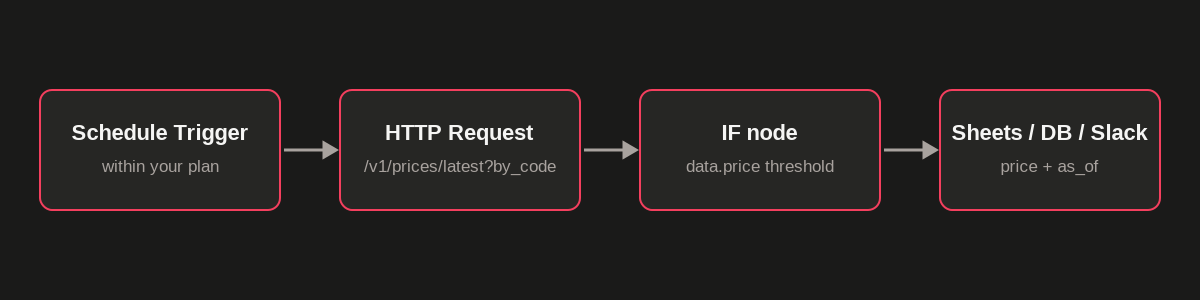
The n8n page on oilpriceapi.com has an importable two-node workflow JSON. The rest of this guide covers several codes per request, self-hosting, templates and error handling.
Overview
n8n is a fair-code licensed workflow automation tool that can be self-hosted or used via n8n Cloud. It offers visual workflow building with the flexibility of custom code when needed.
Why Choose n8n for Oil Price Automation:
- Self-hosted option for data sovereignty
- No per-execution pricing when self-hosted
- Custom JavaScript/Python code nodes
- 400+ built-in integrations
- Full API access and webhook support
- Open-source community and extensions
Prerequisites
Before you begin:
- An active OilPriceAPI account with API key (Sign up)
- n8n installation (self-hosted or n8n Cloud)
- Access to destination systems (databases, apps, etc.)
n8n Installation Options
Option A: n8n Cloud
- Sign up at n8n.cloud
- No installation required
Option B: Docker Self-Hosted
docker run -it --rm \
  --name n8n \
  -p 5678:5678 \
  -v n8n_data:/home/node/.n8n \
  n8nio/n8n
Option C: npm Installation
npm install n8n -g
n8n start
Step-by-Step Workflow Setup
Step 1: Create a New Workflow
- Open n8n (default: http://localhost:5678)
- Click New Workflow
- Name it "Oil Price Automation"
Step 2: Add a Trigger Node
Option A: Schedule Trigger (Cron)
- Click Add first step
- Search for Schedule Trigger
- Configure:
- Trigger Times: Add Item
- Mode: Every Day
- Hour: 8
- Minute: 0
Option B: Webhook Trigger
- Search for Webhook
- Select Webhook node
- Copy the webhook URL for external triggers
Step 3: Add HTTP Request Node
- Click + after your trigger
- Search for HTTP Request
- Configure:
Settings:
| Field | Value |
|---|---|
| Method | GET |
| URL | https://api.oilpriceapi.com/v1/prices/latest |
Query Parameters:
| Name | Value |
|---|---|
| by_code | BRENT_CRUDE_USD,WTI_USD |
Authentication: Generic Credential Type → Header Auth, using a credential with Name Authorization and Value Token YOUR_API_KEY (see Using Credentials Securely).
With more than one code, the response holds an array in data.prices, and data.missing lists any requested code that has no current price. An unknown code returns HTTP 400 invalid_code unless you add partial=true. On the latest-price endpoint, up to 20 codes in one request count as one request (up to 10 when any of them is a futures contract; see pricing).
{
  "status": "success",
  "data": {
    "prices": [
      {
        "code": "BRENT_CRUDE_USD",
        "price": 96.53,
        "unit": "barrel",
        "as_of": "2026-11-26T18:29:00.000Z"
      },
      {
        "code": "WTI_USD",
        "price": 84.89,
        "unit": "barrel",
        "as_of": "2026-11-26T18:31:12.000Z"
      }
    ],
    "missing": []
  }
}
Step 4: Process the Data
Add a Code node to transform the data:
// One output item per code. Works for one code (data is an object)
// or several (data.prices is an array).
const data = $input.first().json.data;
const prices = Array.isArray(data.prices) ? data.prices : [data];

return prices.map((p) => ({
  json: {
    commodity: p.code,
    price: p.price,
    unit: p.unit,
    change: p.changes?.["24h"]?.percent ?? null,
    as_of: p.as_of,
    timestamp: new Date().toISOString(),
  },
}));
as_of is the source observation time; timestamp is when your workflow ran. Without a Code node, a Split Out node on data.prices gives the same one-item-per-code result.
Step 5: Send to Destination
Add destination nodes based on your needs:
Example: Send to Slack
- Add Slack node
- Connect your Slack account
- Configure:
- Resource: Message
- Operation: Send
- Channel: #oil-prices
- Text:
Oil Price Update
{{ $json.commodity }}: ${{ $json.price }}
Change: {{ $json.change }}%
Step 6: Test and Activate
- Click Execute Workflow to test
- Review output at each node
- Toggle Active to enable the workflow
Workflow Templates
Template 1: Daily Price Report to Google Sheets
Track historical prices in a spreadsheet.
[Schedule Trigger] → [HTTP Request] → [Code] → [Google Sheets]
         (Daily 8 AM)      (Get Prices)    (Transform)   (Append Row)
Google Sheets Node Configuration:
- Operation: Append
- Spreadsheet: Your Oil Price Tracker
- Sheet: Daily Prices
- Mapping Mode: Map Each Column
- Date:
{{ $json.as_of }} - Commodity:
{{ $json.commodity }} - Price:
{{ $json.price }} - Change:
{{ $json.change }}
- Date:
To write the same rows to Airtable instead, swap the Google Sheets node for the Airtable node and use the field layout in the Airtable guide.
Template 2: Price Alert System
Send alerts when prices cross thresholds.
[Schedule Trigger] → [HTTP Request] → [Code] → [IF] → [Email/Slack]
         (Hourly)         (Get WTI)     (Check)   (> $80?)   (Alert)
IF Node Configuration:
- Conditions:
- Value 1:
{{ $json.price }} - Operation: Larger
- Value 2: 80
- Value 1:
Template 3: Multi-Destination Distribution
Send prices to multiple systems simultaneously.
                                    → [Slack]
[Schedule] → [HTTP] → [Code] → [Split]
                                    → [Google Sheets]
                                    → [PostgreSQL]
Use the Split Out node to create parallel branches.
Template 4: Database Sync Pipeline
Maintain a local database of oil prices.
[Schedule] → [HTTP Request] → [Code] → [PostgreSQL: Upsert]
PostgreSQL Node Configuration:
- Operation: Insert
- Table: oil_prices
- Columns:
- commodity_code:
{{ $json.commodity }} - price:
{{ $json.price }} - change_percent:
{{ $json.change }} - recorded_at:
{{ $json.as_of }}
- commodity_code:
- On Conflict: Update on (commodity_code, recorded_at), so a repeated observation is not stored twice
Advanced Techniques
Using Credentials Securely
Store your API key as a credential:
Go to Settings > Credentials
Click Add Credential
Select Header Auth
Configure:
- Credential name: OilPriceAPI
- Header Name:
Authorization - Header Value:
Token YOUR_API_KEY
In HTTP Request node, select this credential under Authentication
Error Handling
Add error handling to your workflows:
- Click on any node
- Go to Settings
- Enable Continue on Fail
Or add an Error Trigger workflow:
[Error Trigger] → [Slack: Send Error Notification]
Retry Logic
Configure retries for API calls:
- Select HTTP Request node
- Go to Settings
- Retry On Fail: Enable
- Max Tries: 3
- Wait Between Tries: 5000 (ms)
Parallel Processing
Process multiple commodities in parallel:
// In Code node - create parallel requests
const commodities = [
  "BRENT_CRUDE_USD",
  "WTI_USD",
  "NATURAL_GAS_USD",
  "DIESEL_USD",
];

return commodities.map((code) => ({
  json: { commodity_code: code },
}));
Then use Split In Batches to process each.
Custom Functions
Create reusable functions:
// Price formatting function
function formatPrice(price, currency = "USD") {
  return new Intl.NumberFormat("en-US", {
    style: "currency",
    currency: currency,
  }).format(price);
}

// Calculate percentage change
function calculateChange(current, previous) {
  return (((current - previous) / previous) * 100).toFixed(2);
}

// Use in transformations
return $input.all().map((item) => ({
  json: {
    ...item.json,
    formatted_price: formatPrice(item.json.price),
    is_significant: Math.abs(item.json.change) > 2,
  },
}));
Integration Examples
PostgreSQL Database Sync
// Code node: Prepare for database insert
return $input.all().map((item) => ({
  json: {
    commodity_code: item.json.commodity,
    price: item.json.price,
    change_percent: item.json.change,
    source: "oilpriceapi",
    observed_at: item.json.as_of,
  },
}));
Webhook Endpoint for External Systems
Create an endpoint that returns current prices:
[Webhook] → [HTTP Request: Get Prices] → [Respond to Webhook]
External systems can call your n8n webhook to get formatted price data.
Email Digest with HTML Formatting
// Code node: Generate HTML email body
const items = $input.all();

let html = `
<h2>Daily Oil Price Report</h2>
<p>Generated: ${new Date().toLocaleString()}</p>
<table border="1" cellpadding="8">
  <tr>
    <th>Commodity</th>
    <th>Price</th>
    <th>Change</th>
  </tr>
`;

items.forEach((item) => {
  const changeColor = item.json.change >= 0 ? "green" : "red";
  html += `
  <tr>
    <td>${item.json.commodity}</td>
    <td>$${item.json.price}</td>
    <td style="color: ${changeColor}">${item.json.change}%</td>
  </tr>
  `;
});

html += "</table>";

return [{ json: { html_body: html } }];
Self-Hosting Best Practices
Environment Variables
Store sensitive data in environment variables:
# .env file for n8n
N8N_BASIC_AUTH_ACTIVE=true
N8N_BASIC_AUTH_USER=admin
N8N_BASIC_AUTH_PASSWORD=secure_password
Keep the OilPriceAPI key in an n8n Header Auth credential rather than an environment variable: credentials are stored encrypted, and recent n8n versions block environment access from Code nodes by default.
Backup Workflows
Export workflows regularly:
# Export all workflows
n8n export:workflow --all --output=./backups/

# Export specific workflow
n8n export:workflow --id=1 --output=./backups/oil-price-workflow.json
Monitoring
Monitor your n8n instance:
- Enable execution logging
- Set up health check endpoints
- Use external monitoring (UptimeRobot, Datadog)
- Configure alerts for failed executions
Security Considerations
- Use HTTPS for n8n access
- Enable basic authentication
- Restrict network access to n8n instance
- Rotate credentials regularly
- Use separate credentials for production
Troubleshooting
Workflow Not Triggering
- Verify workflow is Active (toggle in top right)
- Check Schedule Trigger timezone settings
- Review execution history for errors
API Request Failing
- Verify API key in credentials
- Check URL and header format
- Test endpoint in browser or curl first
- Review n8n execution logs
Data Not Flowing Between Nodes
- Click on connecting lines to see data
- Use Debug node to inspect data
- Check expression syntax in field mappings
Performance Issues
- Use Split In Batches for large datasets
- Add delays between API calls to respect rate limits
- Optimize code nodes to avoid memory issues
Frequently Asked Questions
How do I authenticate OilPriceAPI in n8n?
n8n offers several ways to handle authentication:
Method 1: Direct Headers (Simple) In the HTTP Request node:
- Go to Headers section
- Add:
Authorization: Token YOUR_API_KEY
Method 2: Credentials (Recommended)
- Go to Settings > Credentials
- Click Add Credential > Header Auth
- Configure:
- Name:
OilPriceAPI - Header Name:
Authorization - Header Value:
Token YOUR_API_KEY
- Name:
- In HTTP Request nodes, select this credential
Credentials are encrypted and more secure than hardcoded values.
What's the rate limit when using n8n with OilPriceAPI?
OilPriceAPI limits depend on your plan. New accounts get a 7-day trial with 10,000 requests and no credit card. After that, the Free plan is 50 requests/day and the Developer plan is $19/month for 10,000 requests/month; higher plans are on the pricing page. One request can carry up to 20 latest-price codes. Configure n8n schedules to stay within limits:
| Plan | Example schedule (one request per run) | Requests |
|---|---|---|
| Free | Every hour | 24/day |
| Developer | Every 5 minutes | ~8,640/month |
n8n tip: Since n8n doesn't charge per execution (self-hosted), you can run more frequently without cost concerns, but respect OilPriceAPI limits.
Can I automate price updates in n8n?
Yes, n8n provides flexible automation options:
Schedule Trigger:
- Add Schedule Trigger node
- Configure interval (minutes, hours, days)
- Set specific times (e.g., "Every day at 8 AM")
Cron Expression (Advanced):
0 8 * * 1-5    # Weekdays at 8 AM
0 */4 * * *    # Every 4 hours
*/30 * * * *   # Every 30 minutes
Webhook Trigger:
- Create an endpoint that external systems can call
- Useful for on-demand refreshes
Manual Trigger:
- Click Execute Workflow for testing
- Useful for backfilling data
What happens if the API call fails in n8n?
n8n provides comprehensive error handling:
Built-in Retry:
- Select the HTTP Request node
- Go to Settings
- Enable Retry On Fail
- Set Max Tries (e.g., 3)
- Set Wait Between Tries (e.g., 5000ms)
Error Handling Nodes:
- Add an Error Trigger workflow
- Catch errors from any workflow
- Send notifications via Slack/Email
Continue on Fail:
- Enable in node settings to prevent workflow stoppage
- Useful when processing multiple commodities
Error Workflow Example:
[Error Trigger] → [Set Error Details] → [Slack Notification]
Common errors:
- 401: Invalid API key format (use
Token YOUR_KEY) - 400
invalid_code: a code inby_codedoes not exist (the response suggests close matches) - 429: Rate limited (add Wait node, reduce frequency)
- Timeout: Increase timeout in HTTP Request settings
Is n8n free to use for oil price automation?
n8n is fair-code licensed. The self-hosted Community Edition costs nothing to run for your own internal workflows; n8n Cloud is a paid service (see n8n pricing for current plans). OilPriceAPI requests count against your OilPriceAPI plan either way.
How does n8n compare to Zapier for oil price tracking?
n8n offers more flexibility with custom code, self-hosting options, and no per-execution pricing. Zapier is easier to set up but can become expensive with high-volume automations.
Can I run n8n on a Raspberry Pi?
Yes, n8n can run on a Raspberry Pi or any system with Node.js. For production use, ensure adequate memory (2GB+ recommended) and storage.
How do I handle API rate limits in n8n?
Use the Wait node between API calls, configure retry settings on HTTP Request nodes, or use Split In Batches with delays to space out requests.
Can I create a REST API using n8n?
Yes, use Webhook nodes with Respond to Webhook to create custom API endpoints. This is great for building internal services that aggregate oil price data.
Related Documentation
- Authentication Guide
- API Reference
- Rate Limiting
- n8n setup on oilpriceapi.com
- Webhooks
- Zapier Integration
- Make Integration
- Airtable Integration: log prices to an Airtable table (n8n has an Airtable node; the guide also has a no-n8n automation script)